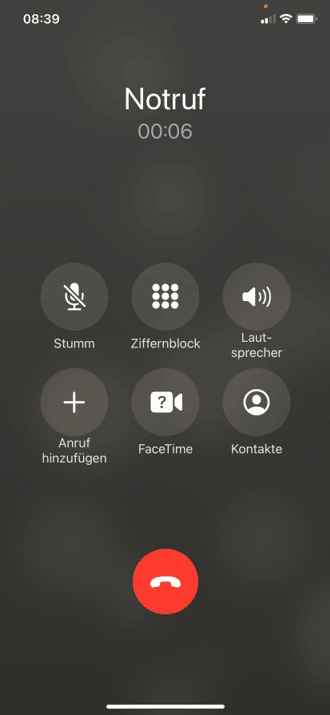
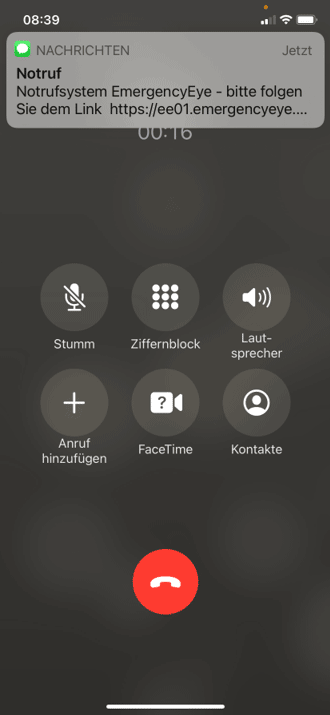
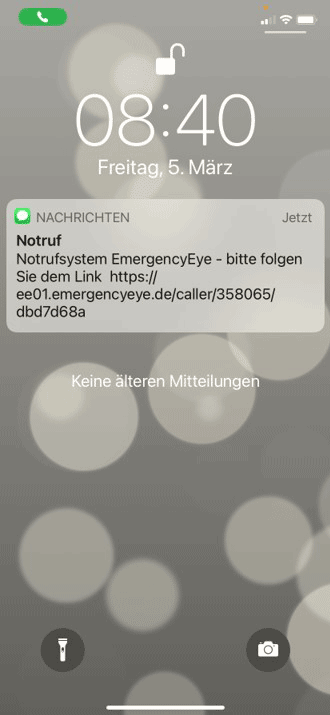
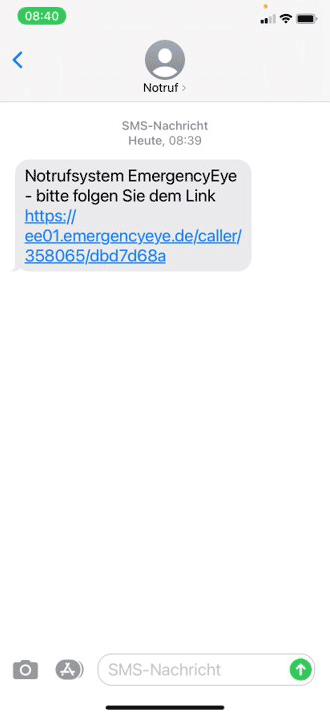
- Either the SMS shows up immediately at the top of the screen. Otherwise, swipe the screen from top to bottom!
-
-
-
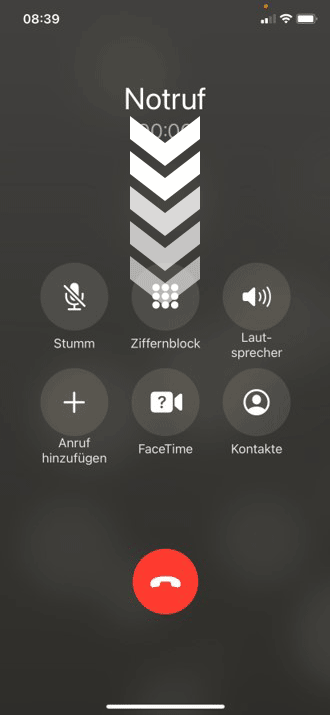
- Either the SMS shows up immediately at the top of the screen. Otherwise, swipe the screen from top to bottom!
-
-
-
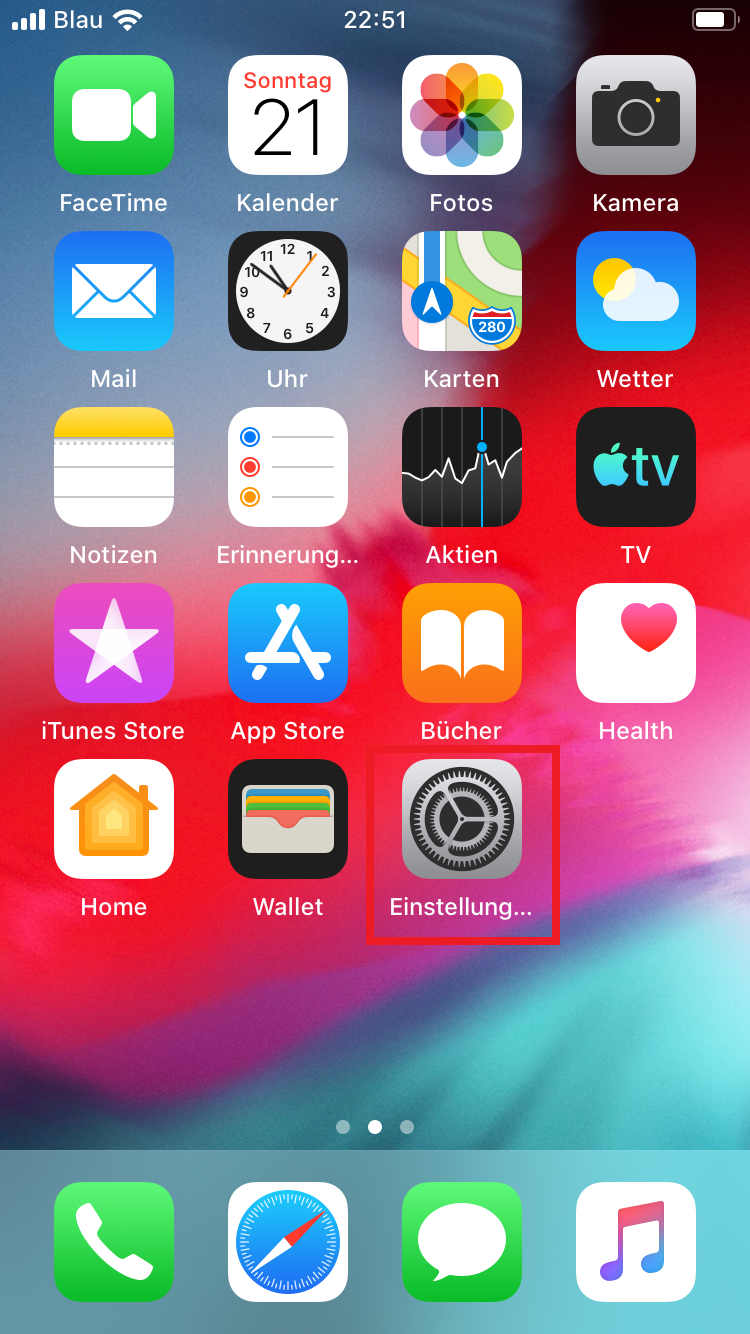
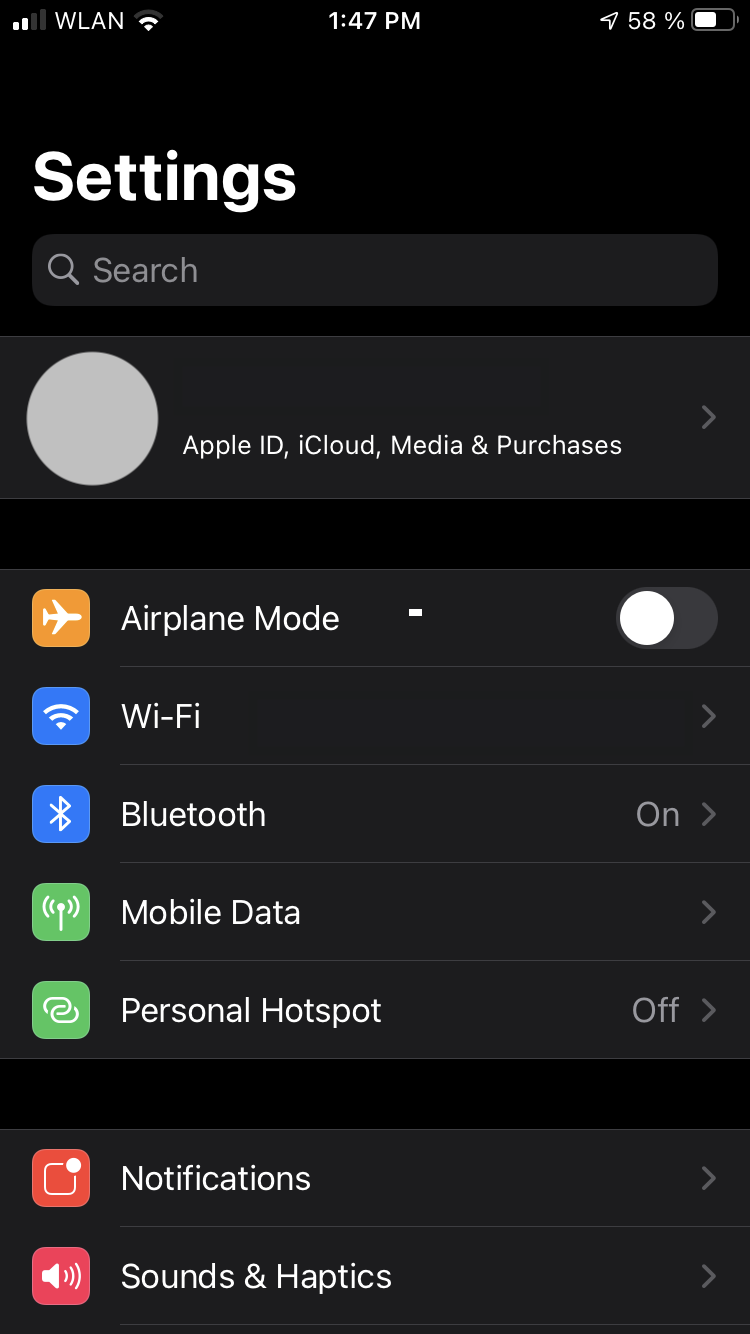
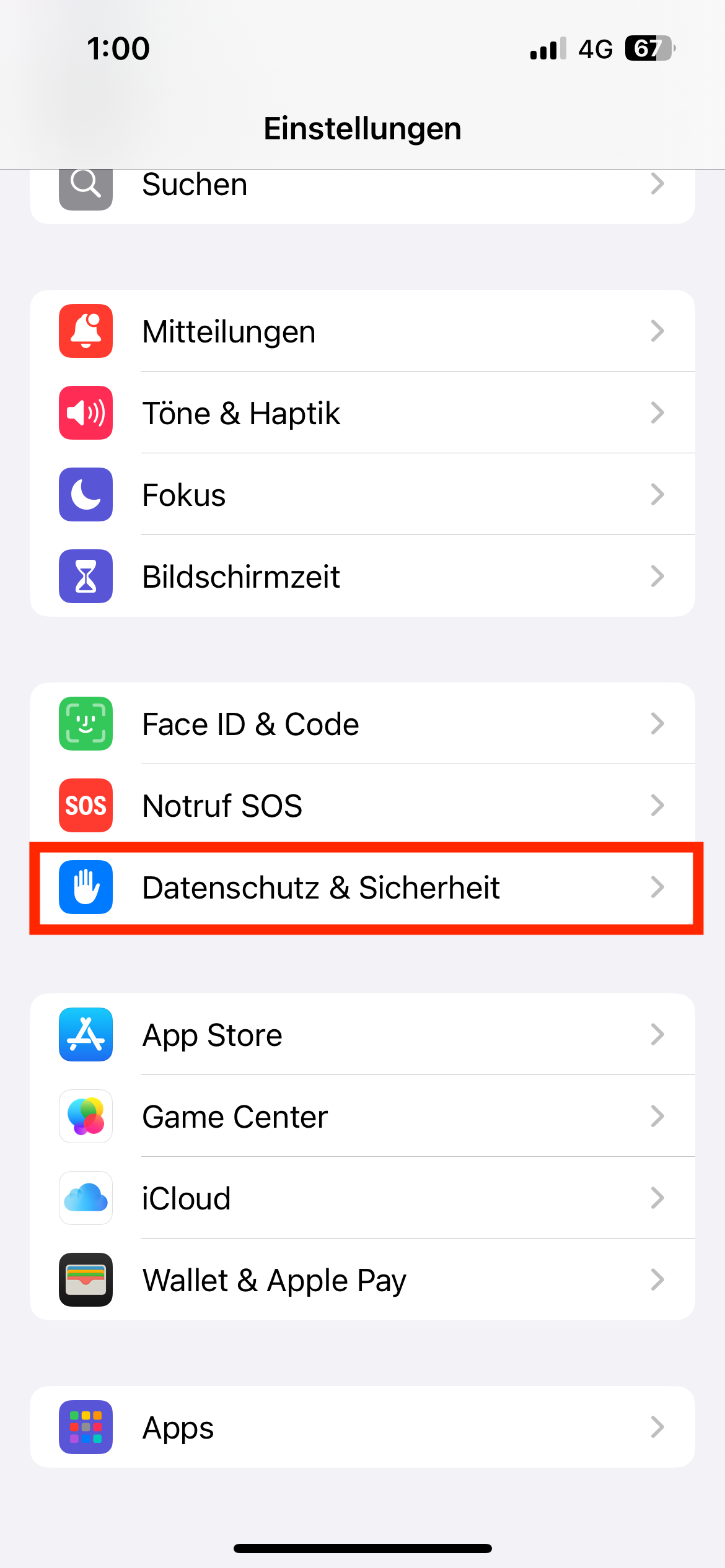
- Unlock the smartphone by swiping it upwards once. Then click on the cogwheel icon to open the settings and then tap on Privacy & security.
-
-
-
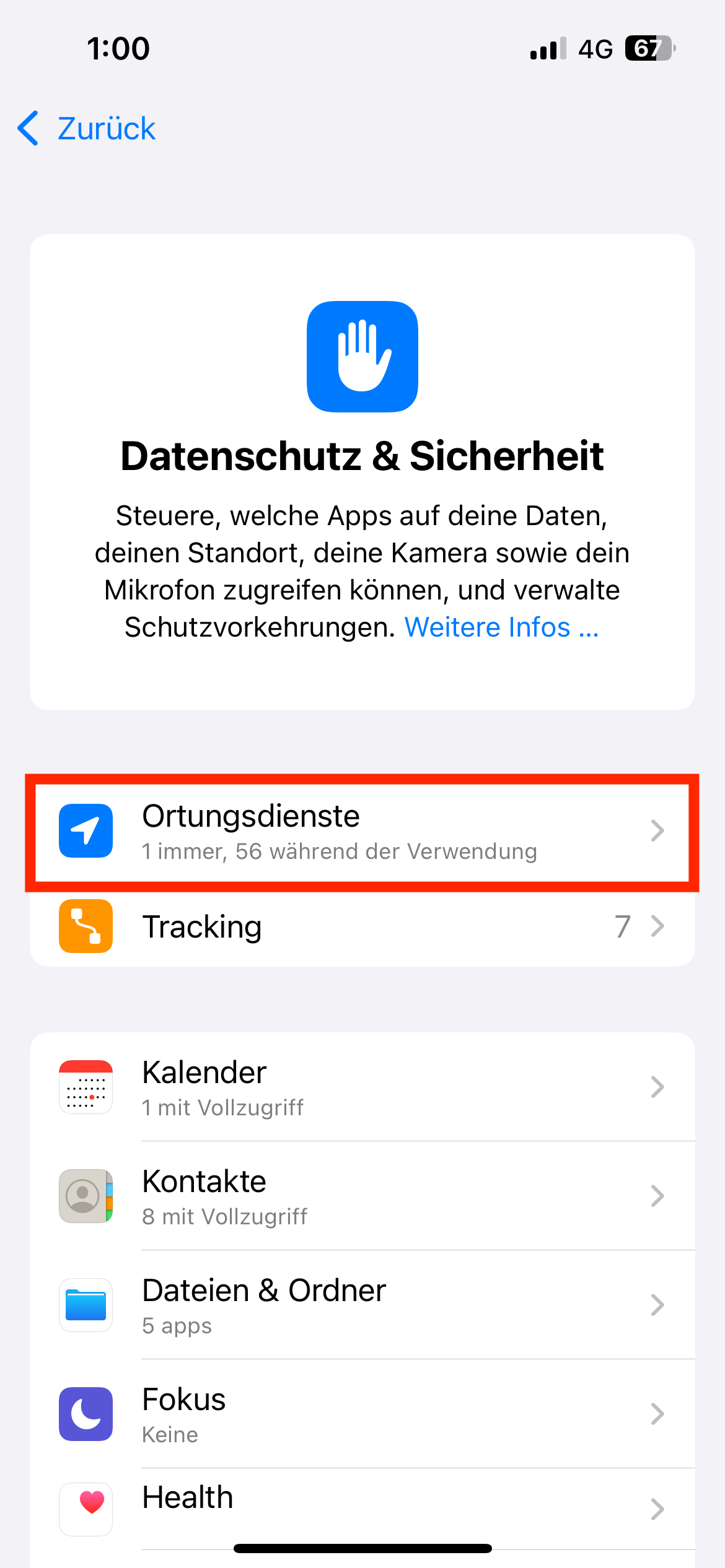
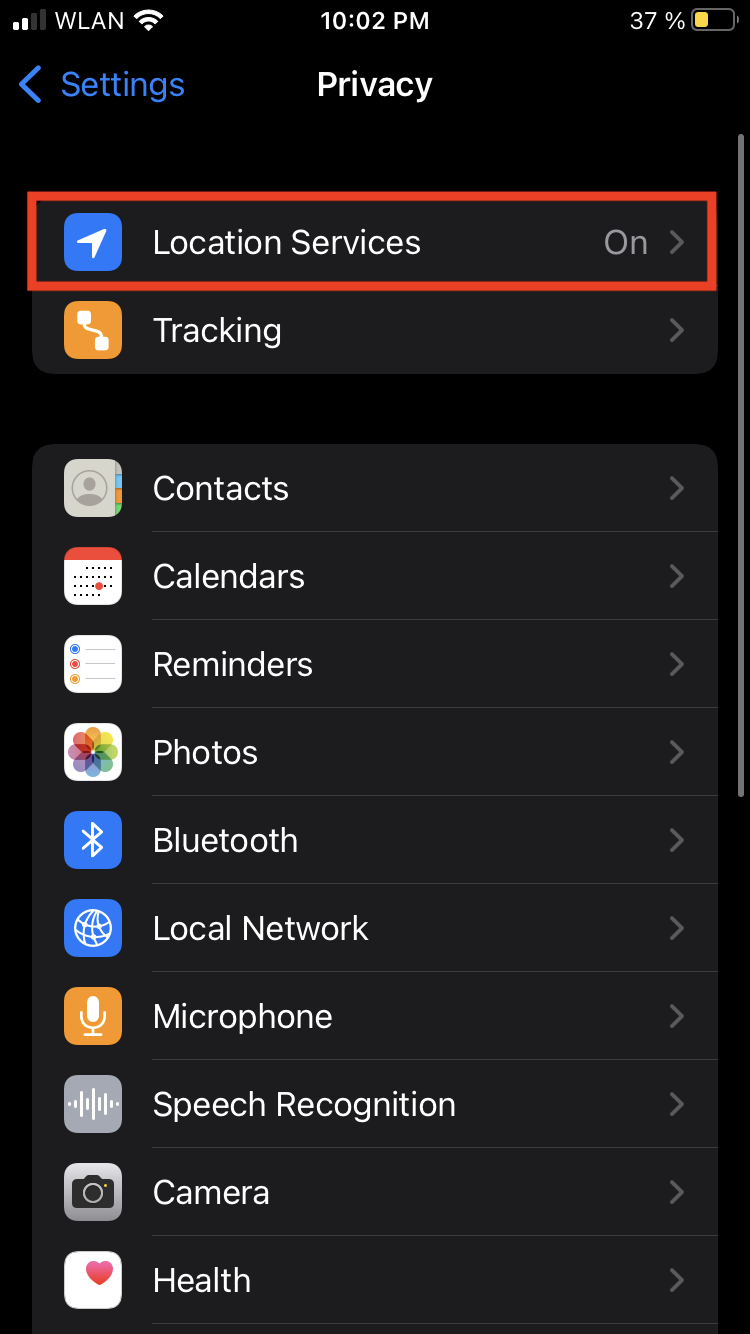
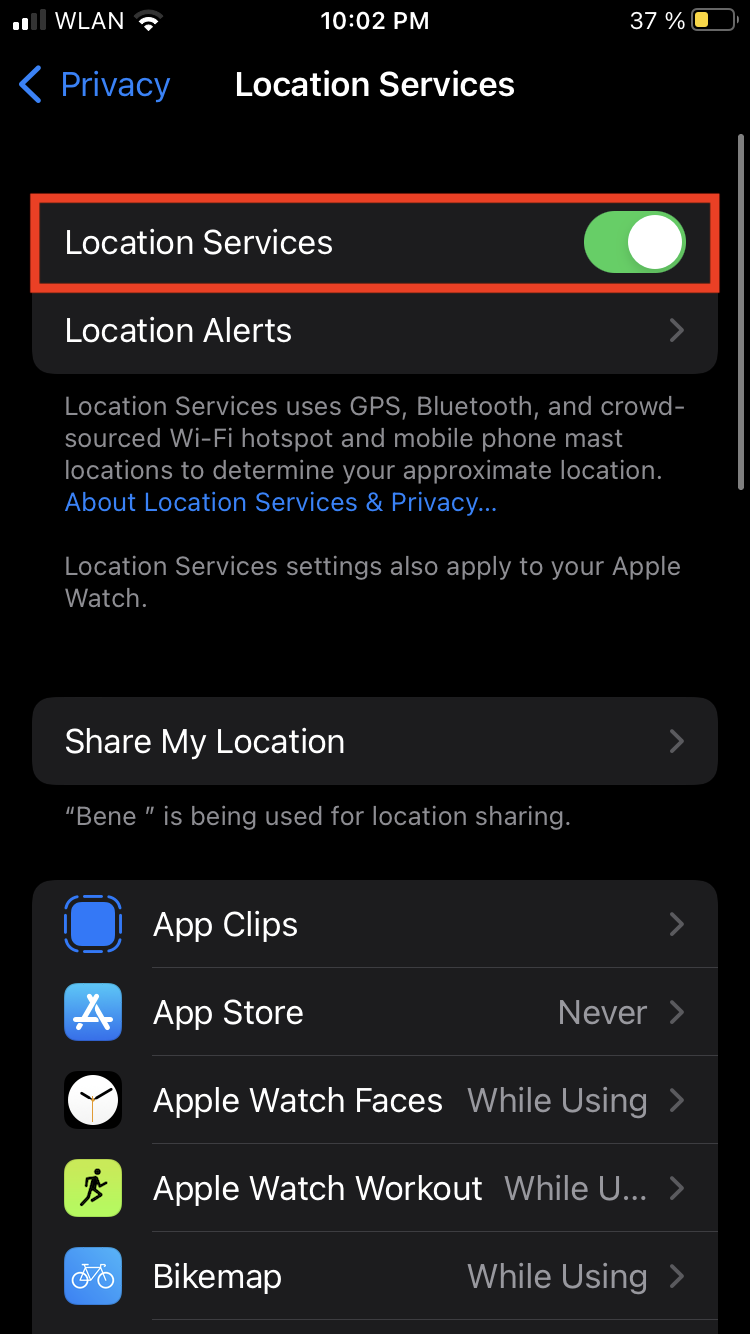
- Tap “Location Services” Then flip the switch at “Location services“.
-
-
-
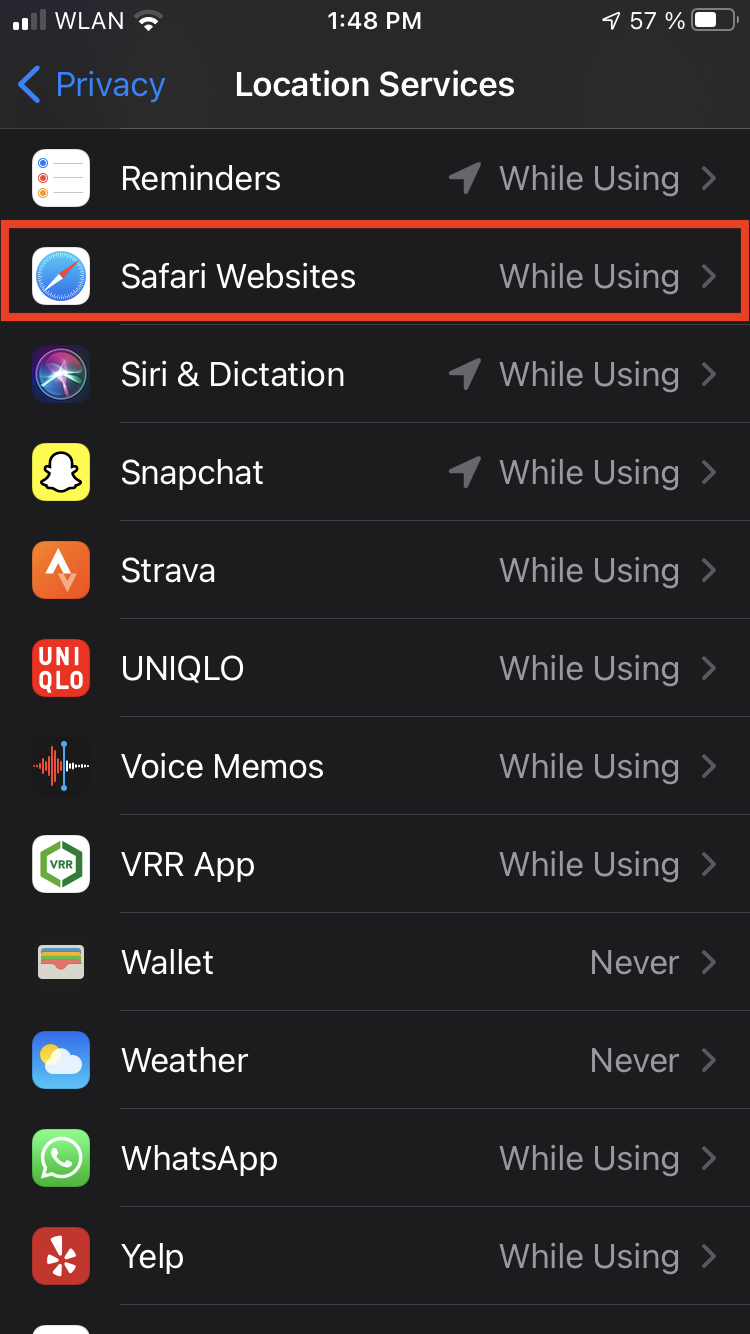
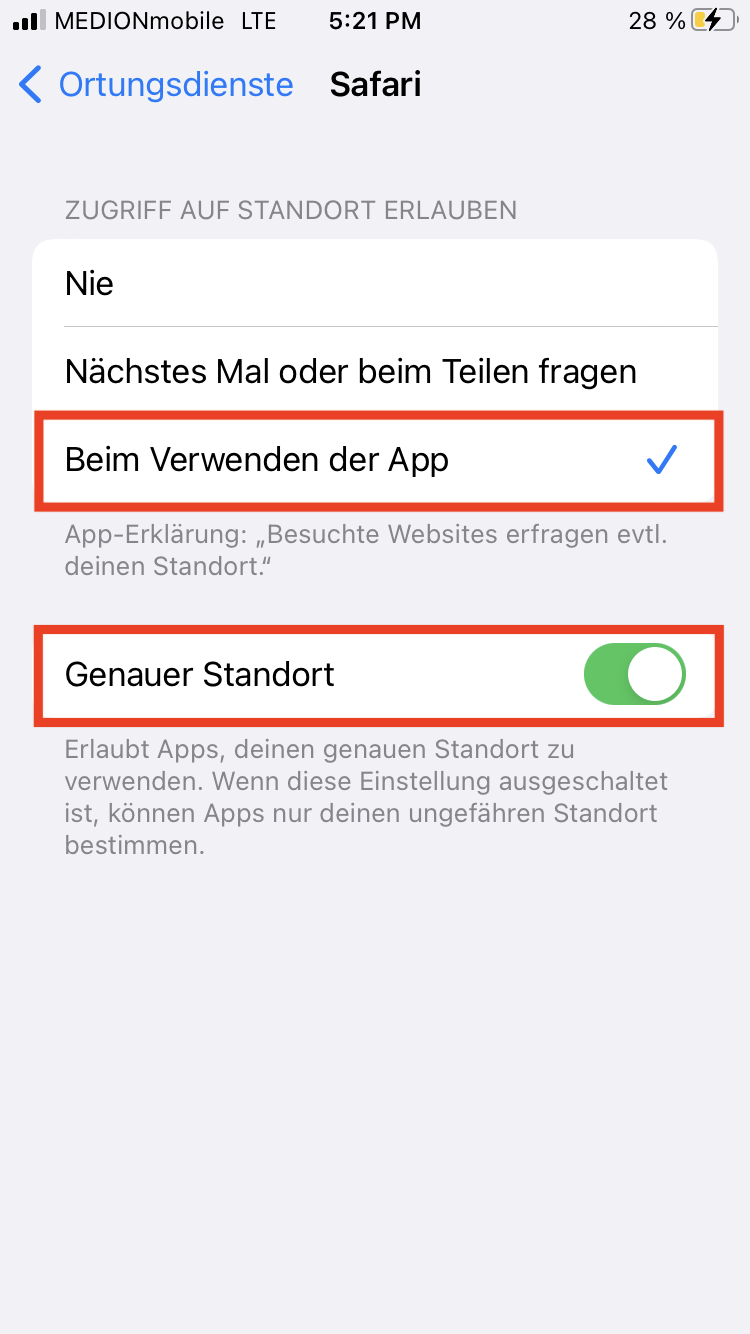
- Scroll down to the browser used, here e.g. “Safari”, tap. Click on “When using the app” and tap this and also click on “Exact location”.
-
-
- Return to the settings via “Back”, then scroll down and click on “Apps”
-
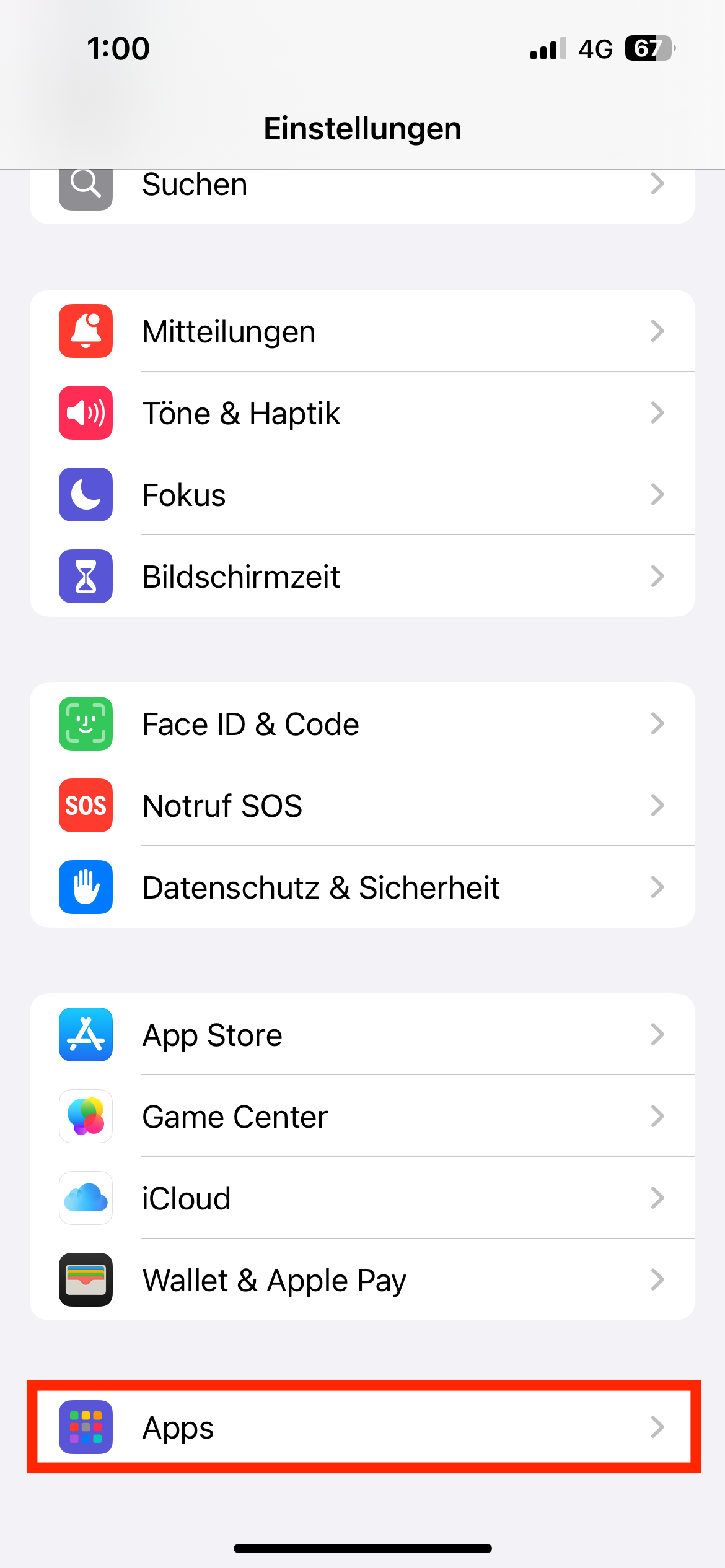
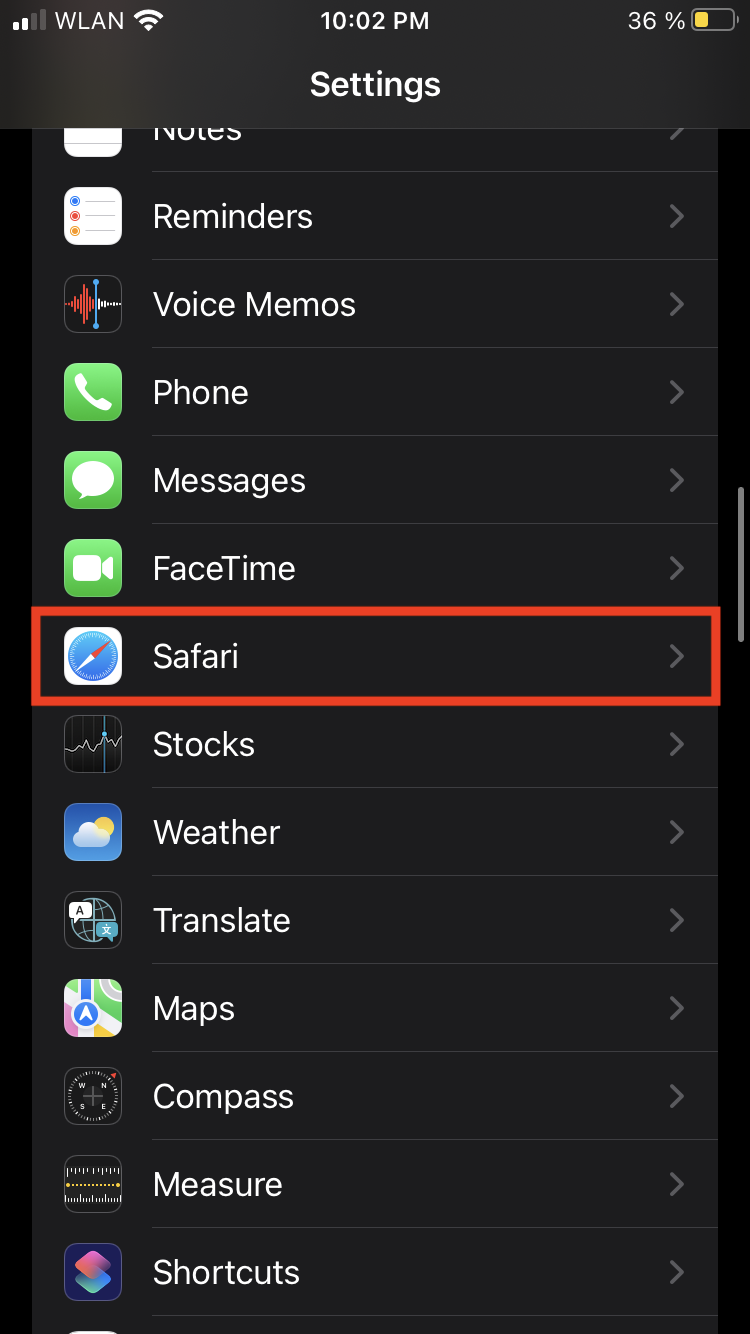
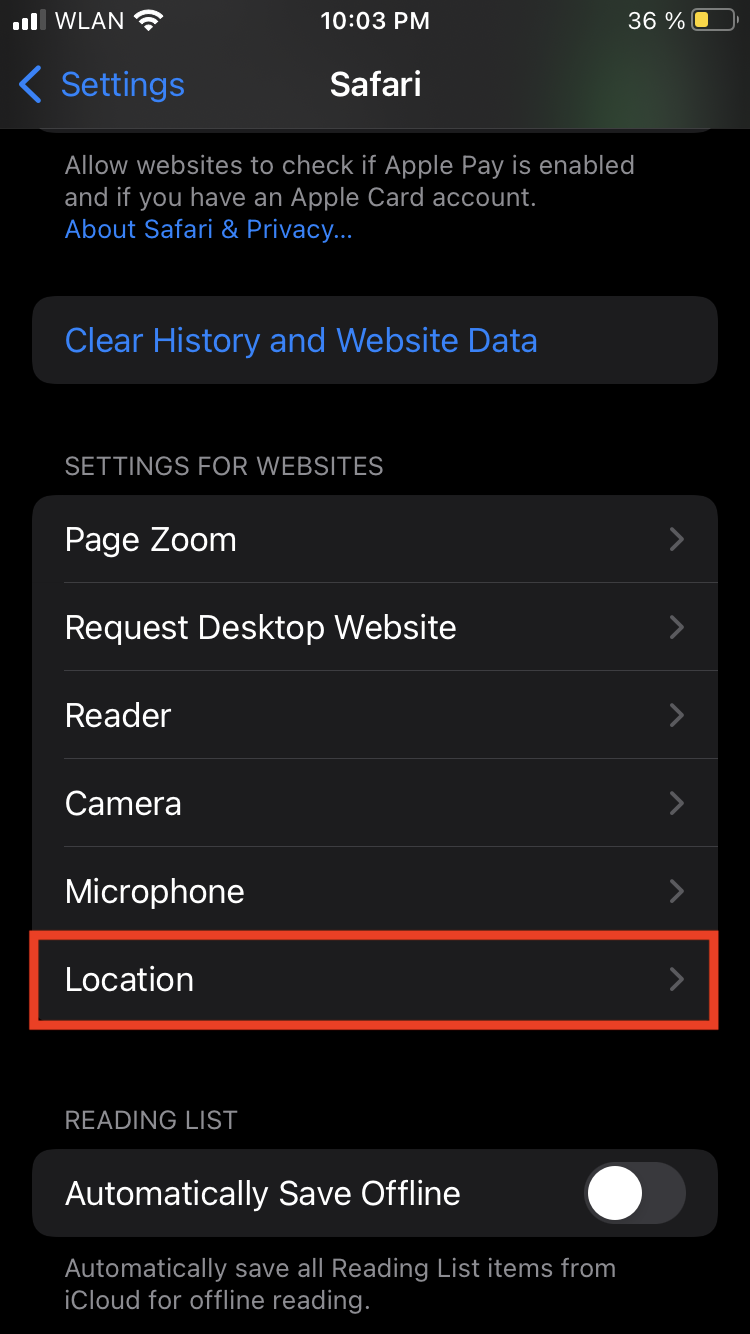
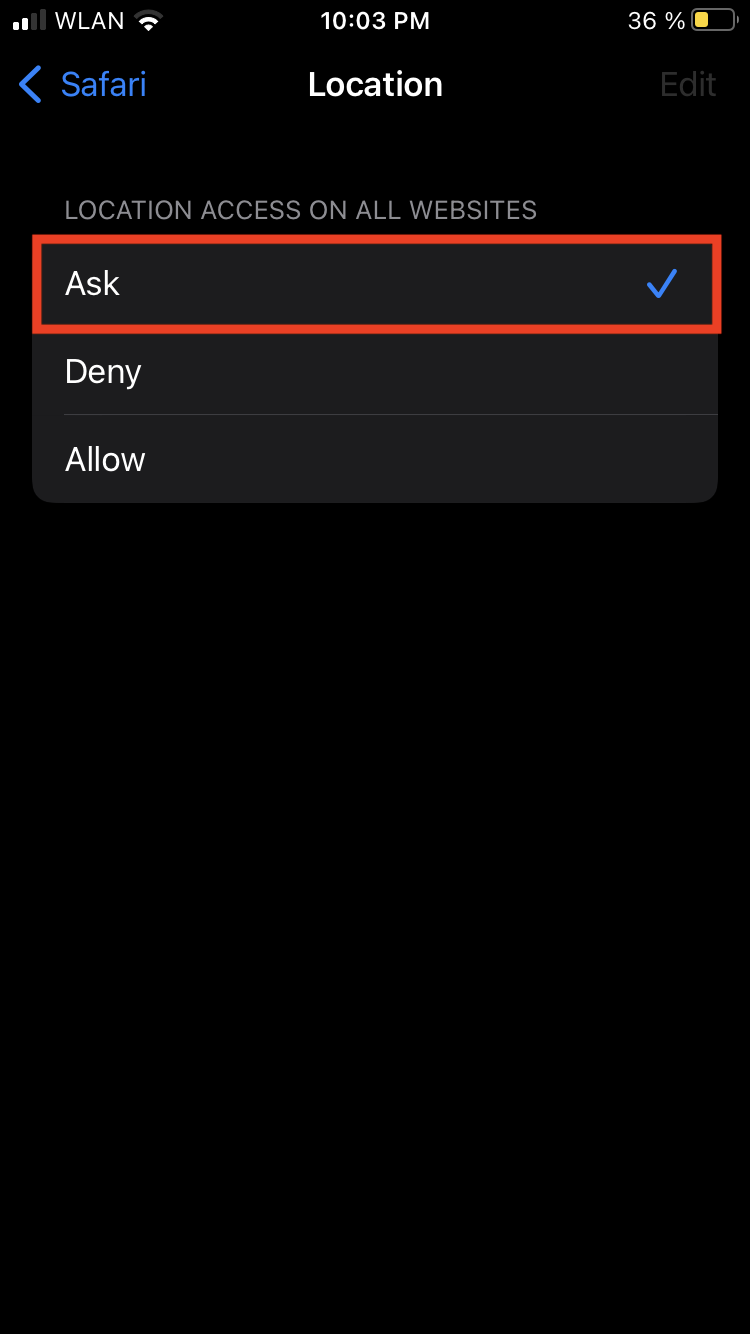
- Scroll down and click on the “Safari” app, then scroll down to “Location” and select “Questions” or “Allow”.
-
-
-
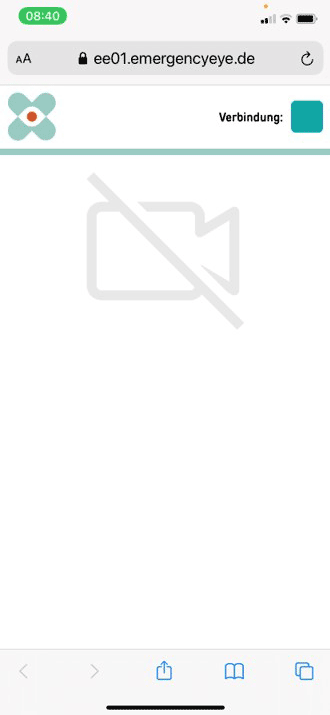
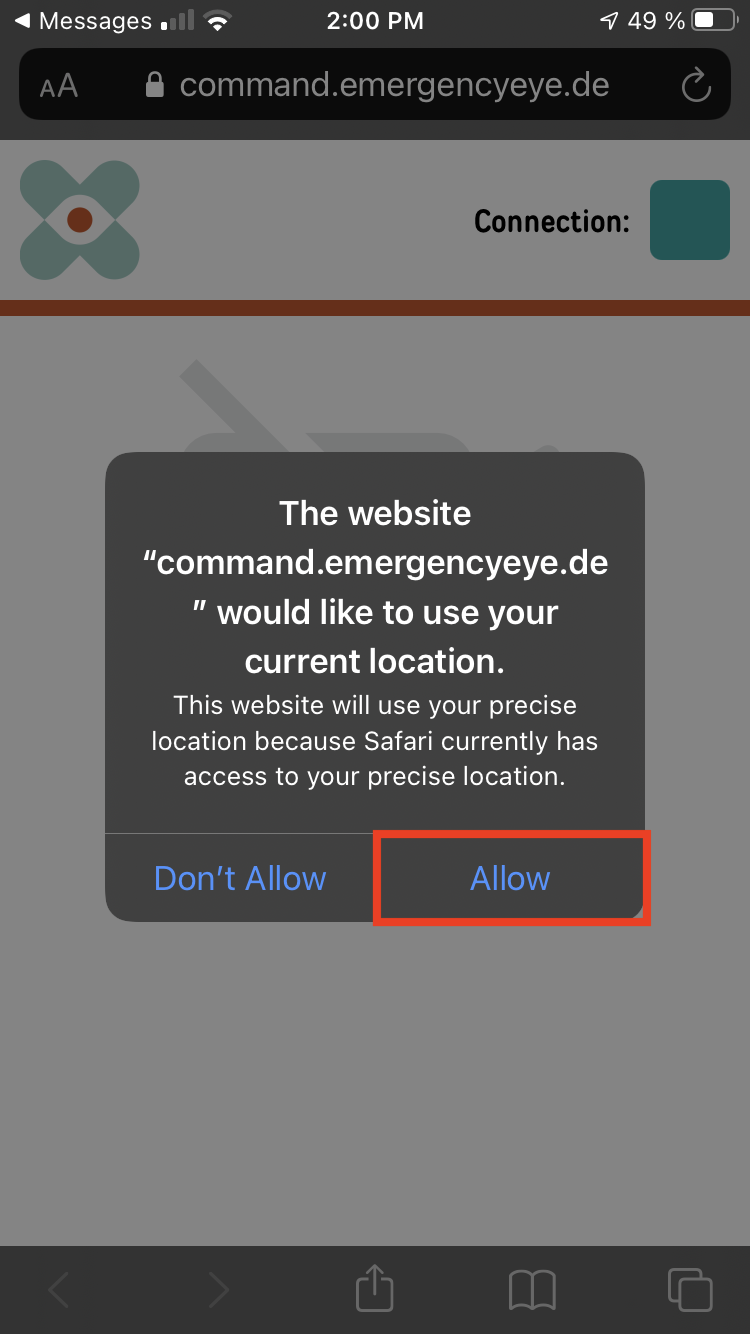
- When returning to the browser and the active EmergencyEye window, the adjacent window will appear when locating again. Select the option “Exactly: On” and enable tracking with “Allow once”.
-
- Press the homescreen button once (large round button under the display) or swipe upwards on the screen to open the homescreen. Open the Settings app (cogwheels). Scroll down to the browser you are using, e.g. “Safari”, and tap it.
-
-
-
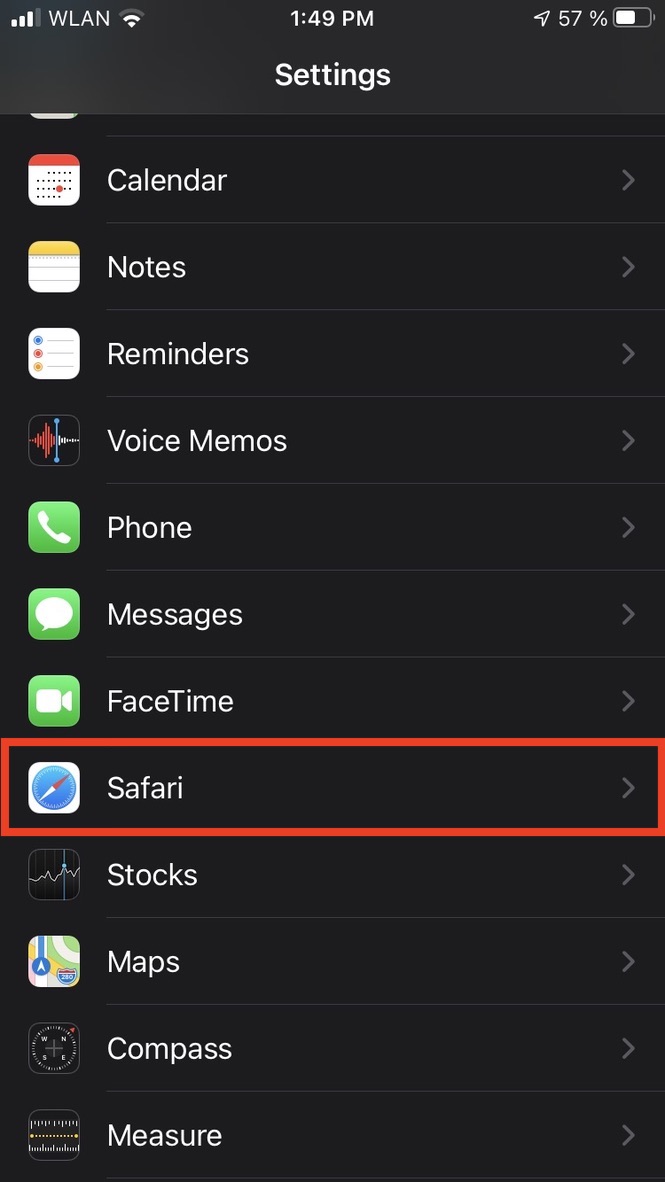
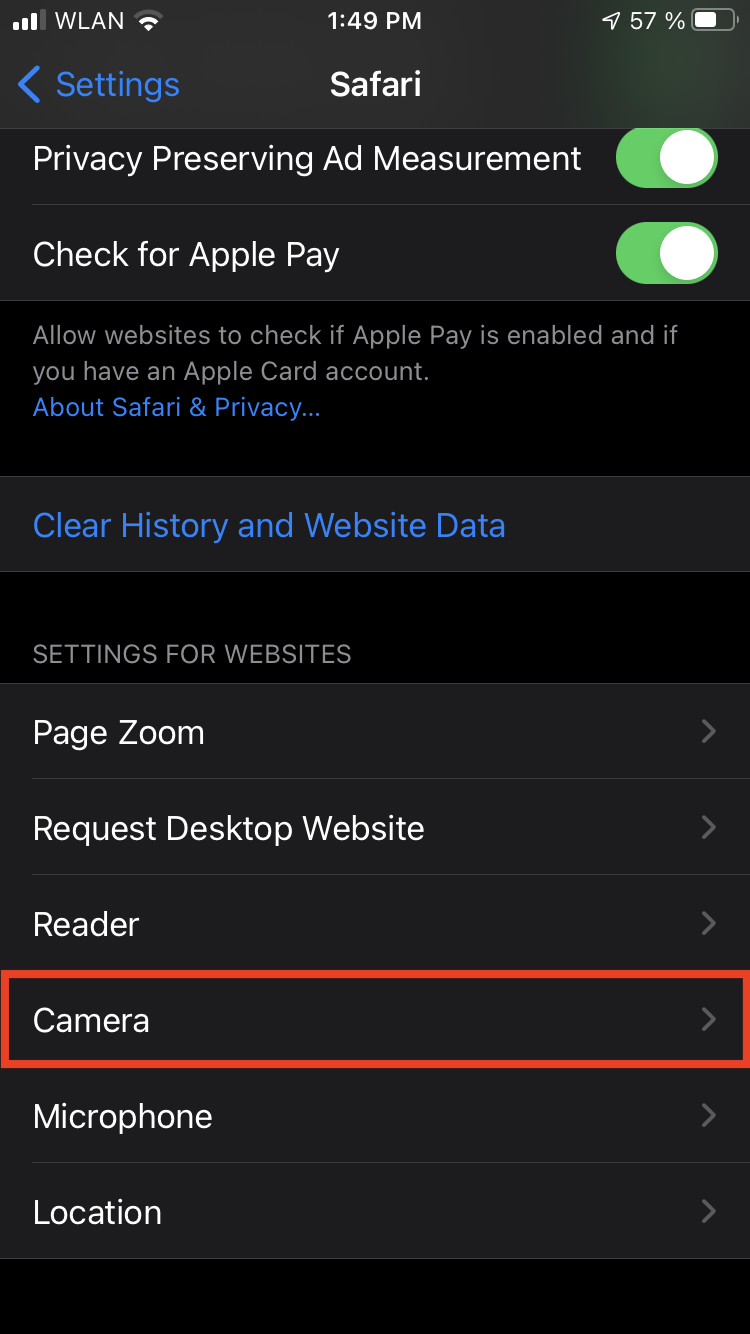
- Scroll down and tap “Camera”and allow camera access to “Questions”.
-
-

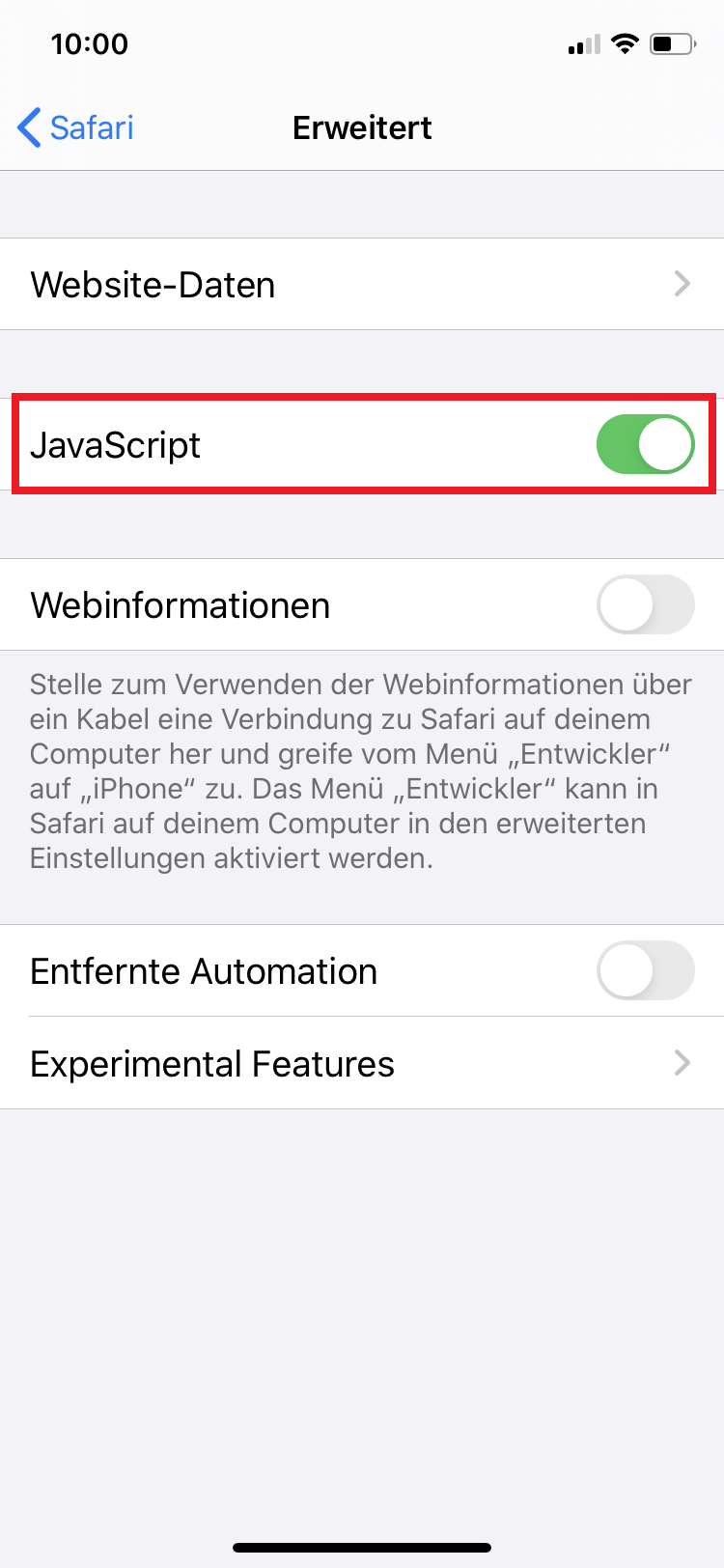
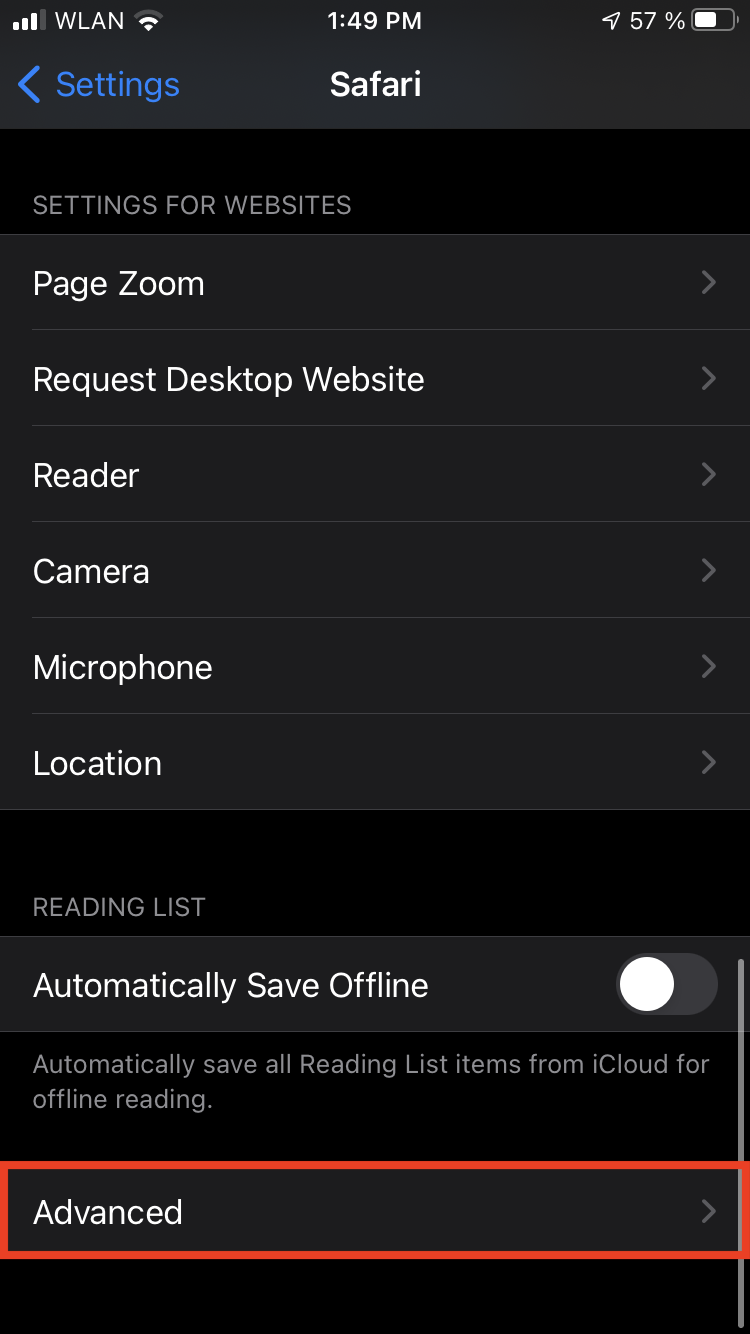
- Switch back one menu by arrow on the top left. Scroll down, click on “Advanced” and enable JavaScript
-

-
-