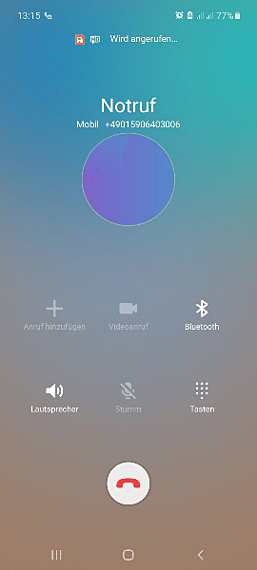
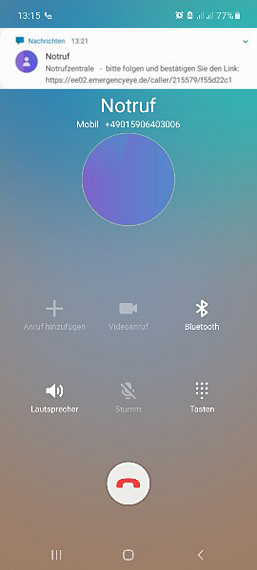
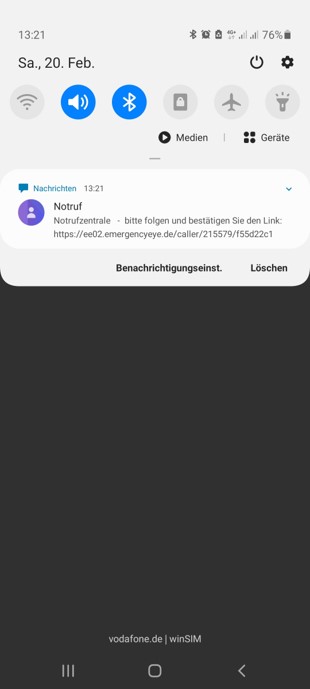
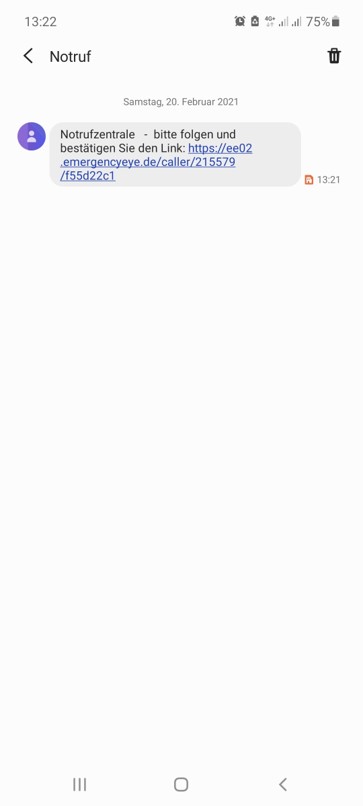
- Either the SMS shows up immediately at the top of the screen. Otherwise, swipe the screen from top to bottom!
-
-
-
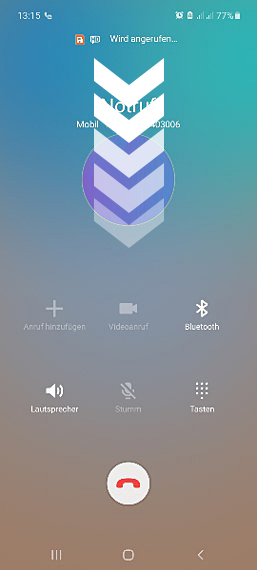
- Either the SMS shows up immediately at the top of the screen. Otherwise, swipe the screen from top to bottom!
-
-
-
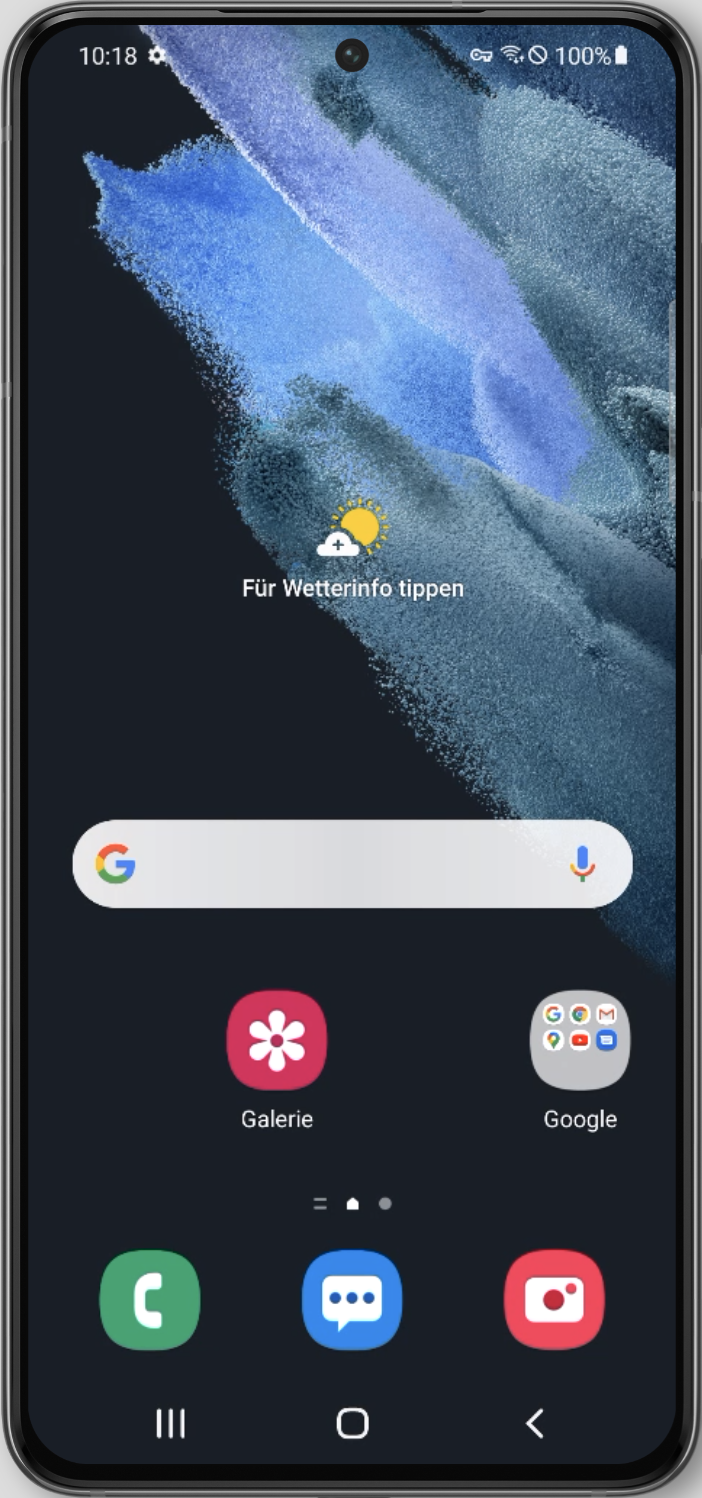
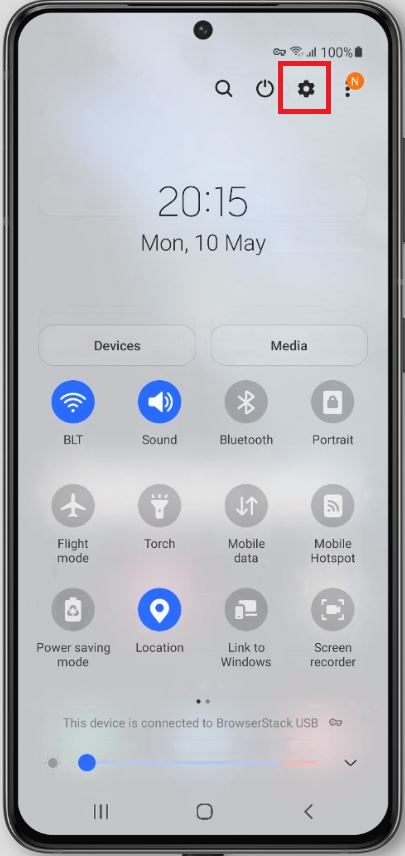
- Swipe down once to open the slider menu. Then click on the cogwheel symbol to open the settings.

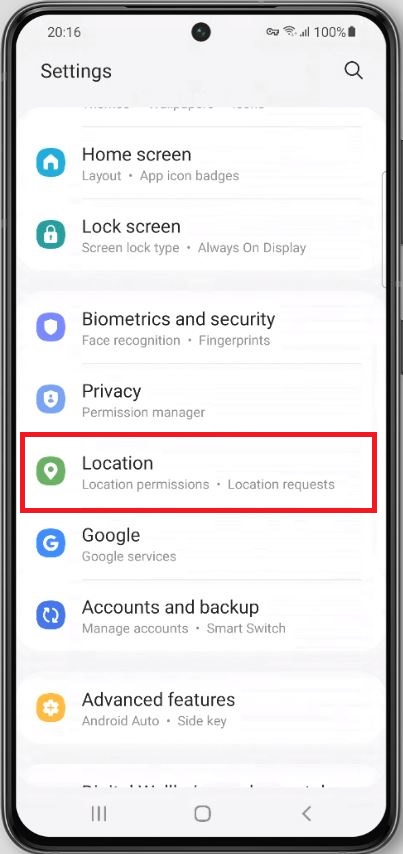
- Scroll down and click on “Location”.
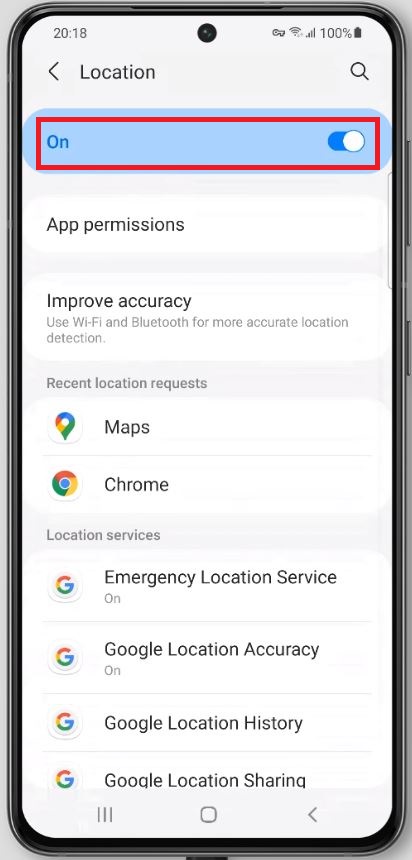
- Select “On” in the header.
- Swipe down once to open the slider menu. Then click on the cogwheel symbol to open the settings.
-
-
-
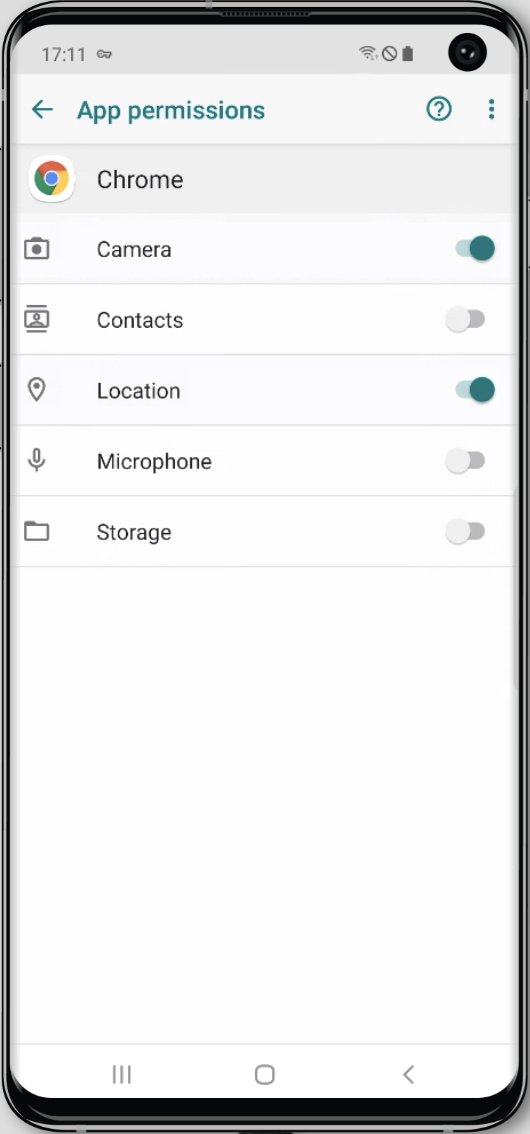
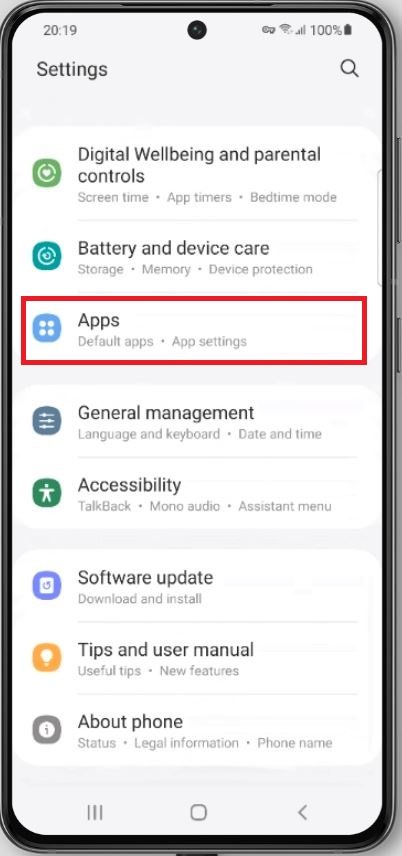
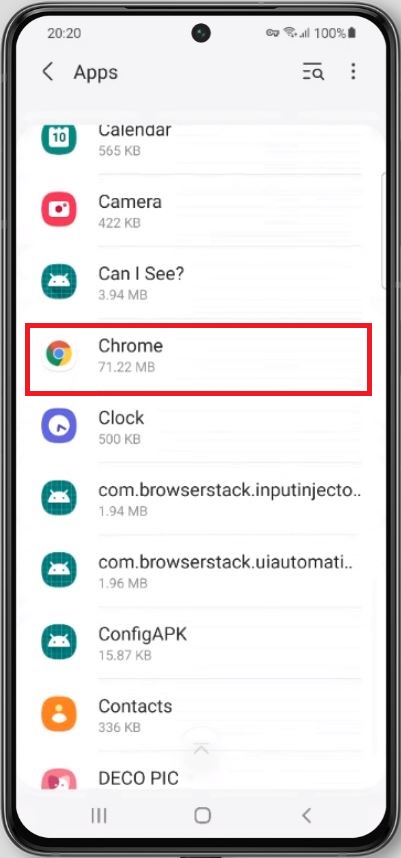
- Scroll down in the menu and click on “Apps”. Scroll down to the browser you are using, in this example “Chrome” (alternatives e.g.: Firefox, Dolphin..) and click on it.
-
-
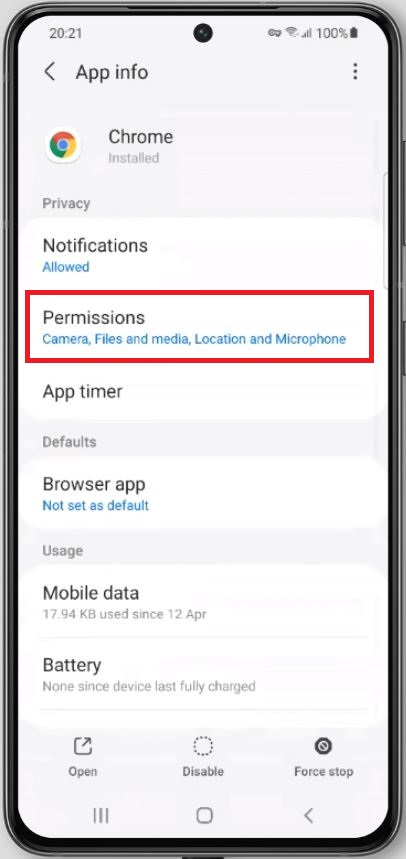
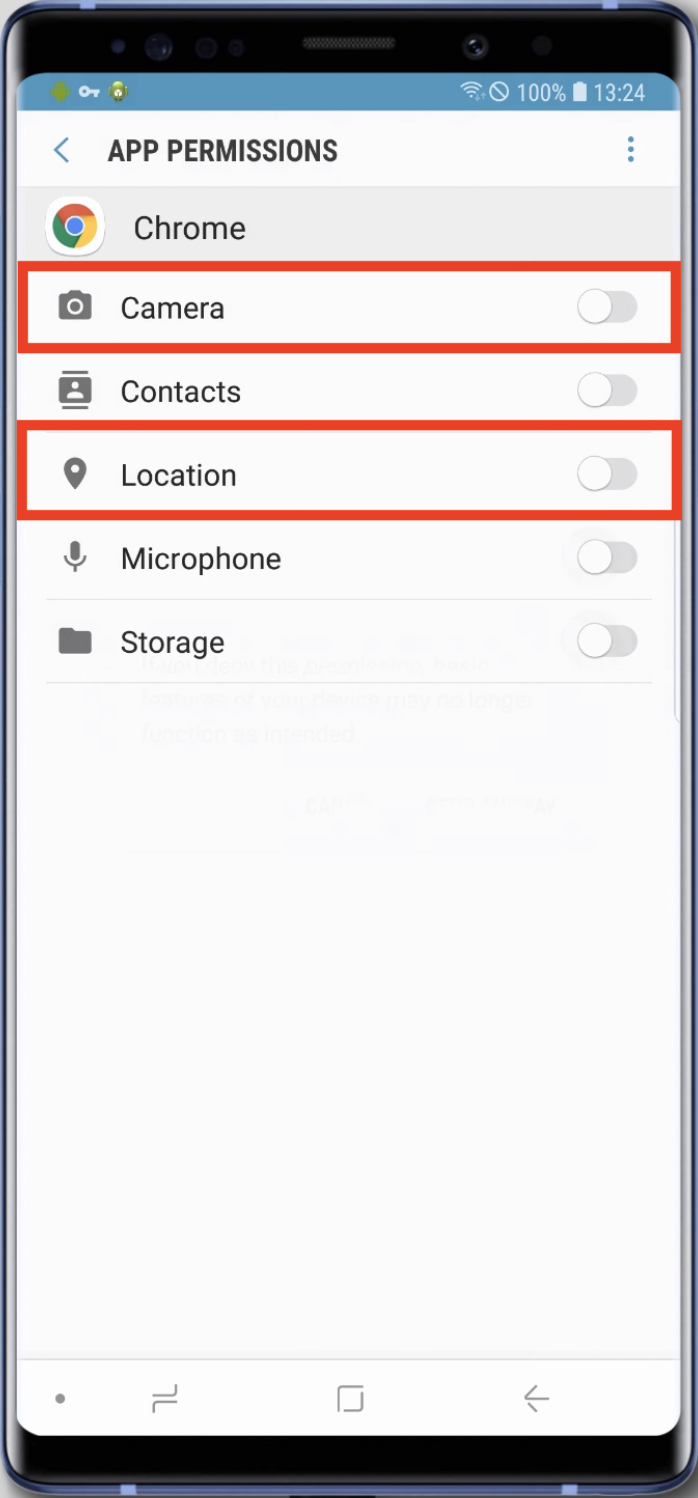
- Click on “Permissions” in the browser menu. There, give permission for “Camera” and/or “Location“.
-
-
-